
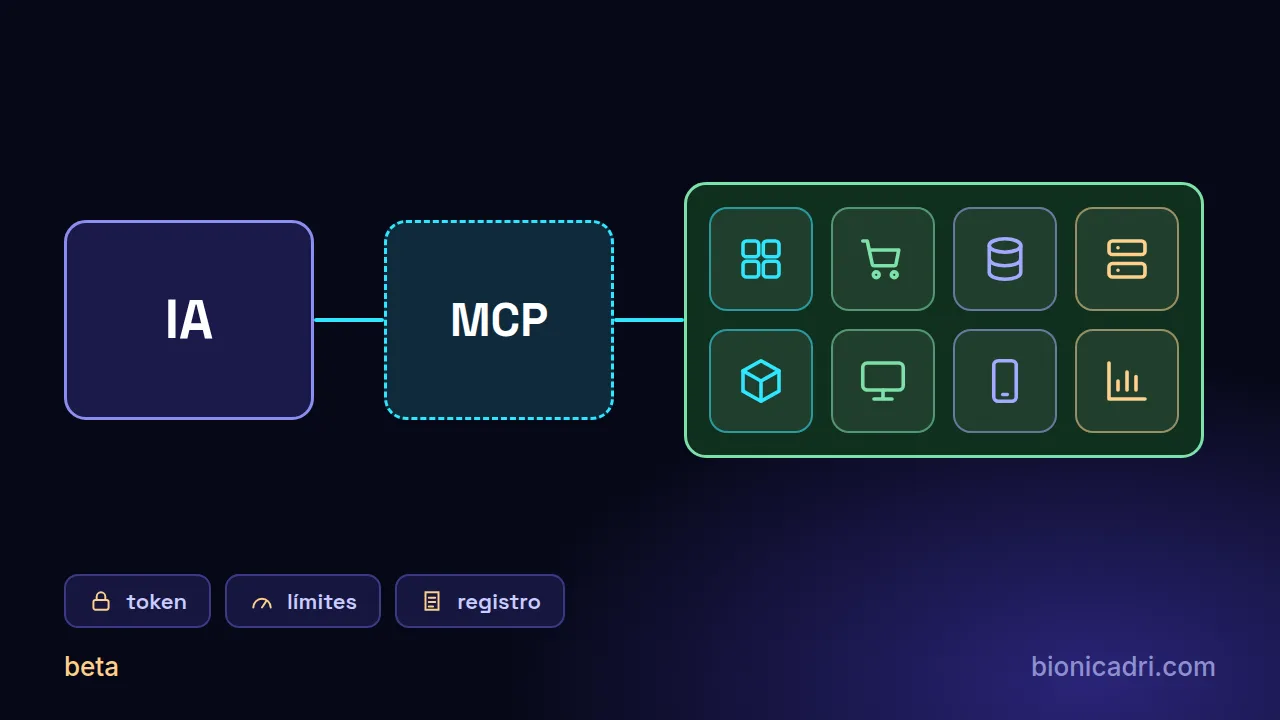
Status: beta. MCP Universal can be used, but we are still testing it, and some parts, such as the SAP integrations, are still in alpha. Always start with a test system and with minimum permissions.
Many small businesses already use an AI that writes and summarises. But ask it "how many orders do I have pending in the shop?" and it doesn't know: it can't see your ERP or your online shop. For it to know, you have to connect it to your programs.
The good news is that it can be done without writing code. We explain how it works with MCP Universal, BionicAdri's tool for this, what it achieves and what is worth knowing before you start.
What does it mean to connect an AI to your ERP?
MCP is a standard that lets an AI use other programs in a controlled way. Think of a universal plug: the AI is the appliance and your ERP, your shop or your database are the sockets. An MCP server is that door: the AI calls, and the door decides what it lets it do.
MCP Universal is BionicAdri's MCP server. From a panel you manage the tokens (the access keys), usage limits, the log of what the AI does and security. And your AI, which can be ADRI or another MCP-compatible assistant, queries your systems at that moment. It isn't a copy of your data: your ERP or your database stays where it is.
What you can ask it once connected
Today there are 49 integrations, grouped by family. Here are some examples of what they cover:
- ERP and invoicing: Odoo, Holded, Tryton or Dolibarr, with sales, stock, invoices and contacts.
- Online shop: WooCommerce and Shopify, with orders, products, stock and customers.
- Databases: PostgreSQL, MySQL, MariaDB, Airtable and Google Sheets, to analyse the schema, the data or slow queries.
- SAP: Business One, S/4HANA and the HANA database, the latter read-only.
- Servers and hosting: Proxmox, Plesk, cPanel, WHM or Cloudflare.
- Your computer and your mobile: 3D and CAD design such as FreeCAD or AutoCAD, the Windows or Linux desktop and an Android phone.
And you ask it by talking: "what stock is left of this item?", "which invoices are pending payment?" or "are there slow queries in the database?". The AI uses whichever integration applies.
How it connects, step by step
- You ask for access. You tell us which software you use and we see which integrations fit.
- You get the address and the token. You do this in the MCP Universal panel, with the permissions you want to give that access.
- You paste it into ADRI. In the chat you open Integrations, choose your software's card, click Connect and paste the address and the token.
- You talk to it as normal. There's no special mode: ADRI uses the active integration when it needs it.
If the software is on your computer, such as AutoCAD or the desktop, you also install the MCP Universal connector on your PC. That connector connects to the MCP Universal central service.
How it stays under control
Giving an AI access to your ERP with no brakes would be a bad idea. That's why control is the important part:
- The token sets the scope. It can be read-only or allow writing. If you revoke it, access is cut off.
- Read-only where you want it. For databases we recommend a read-only user. If the AI tries to write and fails, that's the protection working.
- Limits and logging. You set a cap on usage and what the AI does with each connection is recorded.
- Confirmation before sending. With ADRI, before sending or publishing anything to third parties, such as a Slack message, an email or an SMS from your mobile, you're asked to confirm the recipient and the text.
- Each connection is personal. Each person connects their own, and the first time you accept a legal notice: data leaves your system for the service you connect, and you are responsible for not sending personal or customer data without authorisation.
And what about SAP?
There are three SAP integrations: Business One (through its Service Layer), S/4HANA (through its OData APIs) and SAP HANA. All three are in alpha, because they haven't yet been tested against a real SAP. If you use them, connect them first to a test company or system, never to production, and with a user with minimal permissions; in HANA, read-only. If your SAP is inside your company's network, it goes through the MCP Universal connector.
With ADRI or with another AI
ADRI comes with MCP Universal already integrated. But it isn't exclusive: the service publishes the standard MCP OAuth authorisation information, so an MCP-compatible assistant that supports remote servers with OAuth can connect. The confirmations and notices we've just described are ADRI's.
On our service or at your company
You can use MCP Universal on BionicAdri's central service or installed at your company with a licence. It doesn't have a fixed price: it's prepared on a quote basis, depending on your integrations and the way you work.
How to get started without risk
- Choose a single integration, the one that would save you the most time.
- Connect it to a test system or a copy, not to production.
- Give it minimal permissions: read-only first.
- Ask three or four real questions and check the log.
- Only widen permissions once you're comfortable with what you see.
If you want to see what can be connected, take a look at the MCP Universal page and the connector catalogue, or ask for access or a quote.
- MCP
- ERP
- SAP