
Every customer, a point
It comes from their address. If the street isn't found, the point goes to the postcode or the city and you're told it's approximate.
Customers and visits
See where each customer is, who hasn't had a visit in months and plan the next ones in one go. Then log the kilometres and the cost of the trip. And if you prefer, ask ADRI for it by chat.
What it is
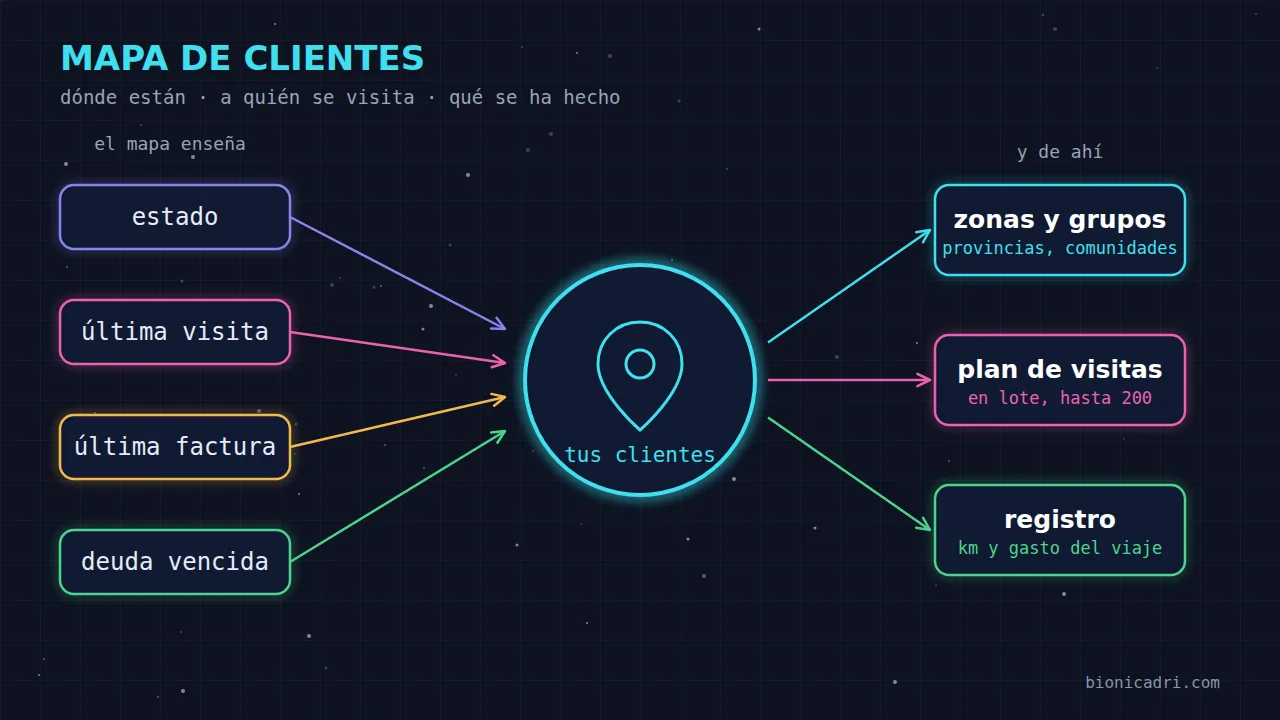
A list of customers doesn't tell you which area you've abandoned. A map does. Each customer is a point, coloured by what matters to you: whether they owe money, whether they've gone a long time without a visit or without buying.
It's one more tab in your CRM and your customers. It uses the same invoice and visit data, and each person only sees what their permissions let them see.
What you see
It comes from their address. If the street isn't found, the point goes to the postcode or the city and you're told it's approximate.
Colour by status, last visit, last invoice or overdue debt. The legend says how many customers there are of each colour and, when you click it, hides or shows them.
Colour provinces or autonomous communities by customers, invoiced over 12 months, overdue debt or percentage without a visit in 60 days. Click an area and the map centres on it.
Click a point and you see what's overdue, pending collection, invoiced over 12 months, the last invoice, the last visit, the next planned visit and the sales rep.
Filter by name, sales rep, sector and custom fields. Download what you're viewing to Excel, with area, days without a visit, overdue and invoiced.
What you choose stays in the page URL. You copy the link and a colleague sees the same, with their own permissions.
Colour by
You change the criterion and the dots change colour. Click a group in the legend and filter with a single click.
| Criterion | What it distinguishes |
|---|---|
| Status | Red: has overdue unpaid invoices. Amber: has gone 180 days without an invoice or visit. Green: up to date. Grey: inactive. |
| Last visit | Up to 7 days, from 8 to 30, from 31 to 60, more than 60 or never visited. Only completed visits count. |
| Last invoice | Up to 30 days, from 31 to 90, from 91 to 180, more than 180 or never invoiced. |
| Overdue debt | No debt, up to €500, from €500 to €2,000 or more than €2,000. |
An example: sales rep “Ana”, criterion “Last visit” and only “More than 60 days” and “Never visited”. Result: Ana’s customers whom nobody has seen for more than two months.
From the map to the diary
For example, Málaga and more than 60 days without a visit. Also by sales rep or by sector.
You click “Schedule visits”: you choose the date and type (in person, phone or remote) and one visit per customer is created.
Each visit can include its route, with kilometres, time and cost calculated from the office.
The result, notes and next action remain in the customer record. The map updates automatically.
Up to 200 customers at once. Those who already have a scheduled visit and those who are inactive are skipped. By default, management chooses who each visit is assigned to; a sales rep only schedules for themselves and only for their own customers.
Visit log
The visit list brings together customer visits and prospect visits. What you record on one screen appears in the customer record and in the contact record.
Your company sets the rate per kilometre in the settings. A sales rep can only see and edit their own visits; management sees everyone’s. Expenses go to expenses and suppliers.
With ADRI
ADRI reads the same data as the map and with the same permissions as you: a sales rep only gets their own. You can type things like these.
“Which customers in Andalusia have gone more than 60 days without a visit?” or “Which province has the most overdue debt?”. Those never visited appear first.
“Schedule a visit on Monday for Murcia customers with no visit in 60 days.” If there are several, ADRI tells you how many and waits for your confirmation before creating them.
“Suggest visits for Thursday.” ADRI suggests who to visit and in what order.
“Book me a visit to this customer on Thursday, with a route.” It is scheduled, with kilometres, time and cost from the office. If you want it billable to the customer, ADRI shows you the amount and waits for your “yes”.
What ADRI does not do: tap “On my way” or “I've arrived”. They need your location and the first notifies the customer, so they are yours. Try it in the chat with ADRI.
Price
You pay per seat: a seat is an AI task working in parallel, not a person, so there is no limit on users. The server where your data lives is chosen separately, from €100/month. Prices excluding VAT.
Frequently asked questions
From their address. The installation's map server locates it when the customer is created or their address is changed, and checks for missing ones every hour. If it cannot find the street, it uses the postcode or city and marks it as an approximate location. If a point is wrong, you can drag it and save it.
No. The map shows the same customers as the list and with the same permissions. A sales rep with “only mine” sees only their own. The customer portal has no map.
Only a completed visit dated today or earlier. A scheduled or cancelled visit does not count as a visit, either on the map or in ADRI's answers. That's why “no visit in 60 days” is not fooled by visits that have not happened yet.
Up to 200 customers. ADRI, or the “Plan visits” button, skips customers who already have a visit scheduled and inactive customers, and when finished tells you how many it has created. If you ask via chat and there are several, ADRI asks you to confirm before creating them.
Yes. On a visit with a route you see the kilometres by road, the time and the cost, according to the per-kilometre rate set by your company. When you tap “I've arrived”, GPS checks that you are near the customer and the travel expense is created. It can be an internal expense or billable to the customer.
No. “On my way” and “I've arrived” need your location, and the first sends the customer an email with the estimated time, so you tap them yourself on screen. ADRI can log and plan the visit, with its route and cost.
Yes. Colours, zones, filters and the open area stay in the page URL: copy the link and your colleague sees the same thing, with their own permissions.
No-obligation demo
Tell us how you plan visits today and we'll show you how ADRI would do it with your customers. No obligation.