
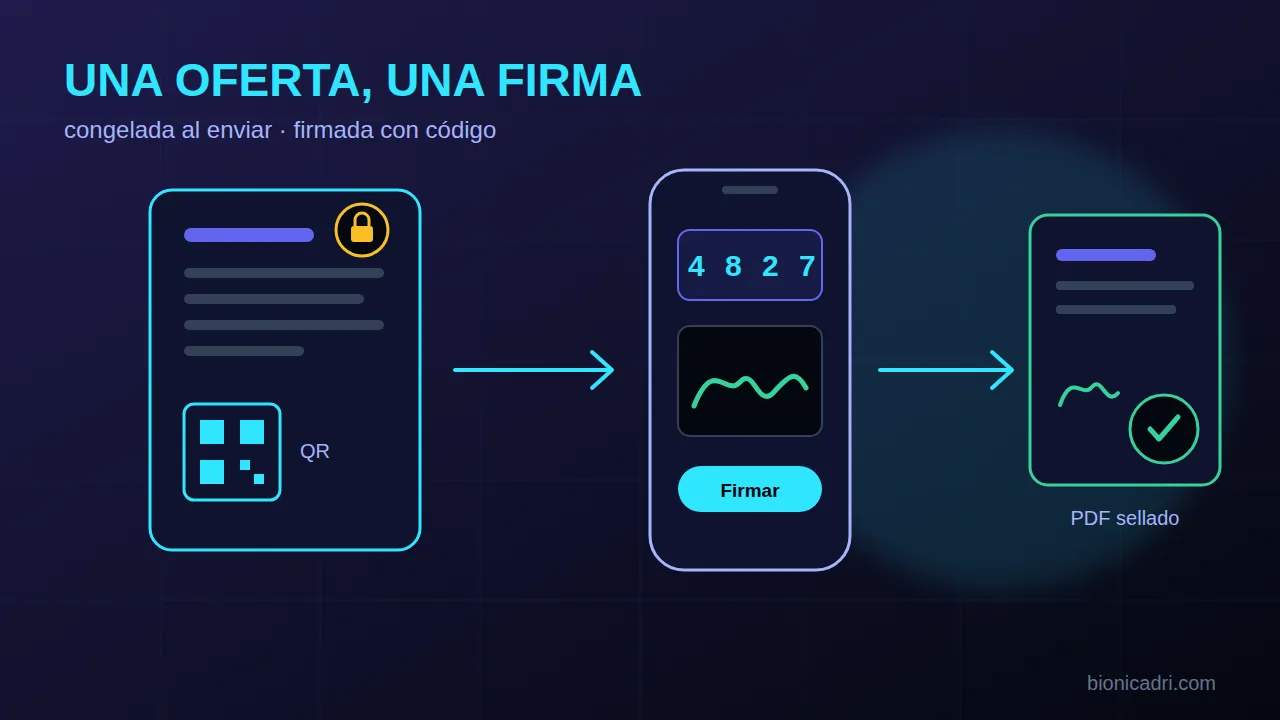
A quote that can be changed after it is sent does not count as proof. And a quote that the customer has to print, sign, scan and return by email takes days. At BionicAdri the quote is frozen when sent and the customer signs from their mobile with a code sent to their email.
This is what happens, step by step, and what you should know before using it.
What you send is what gets signed
While the quote is a draft, you can edit it as much as you like. At the moment you send it (by email, via WhatsApp, through ADRI or by marking it as sent) it is frozen: the line items and amounts can no longer change. That way nobody can dispute what was signed.
What if you make a mistake? The quote is voided, with a written reason, and duplicated as a new draft. The only thing you can change on a sent quote is how long it remains valid, as you will see below.
Sign from your mobile, without printing
The email to the customer includes a button, “View and sign the quote”. The attached PDF also includes a QR code that opens the same page. If you look at a draft PDF, you will see a notice instead of the QR code: the signing link is created when the quote is sent, not before.
The customer opens the quote and reviews it. If they agree:
- They enter their name and role (DNI is optional) and tick that they have read and accept.
- They request the code. A 6-digit number is sent to the email address the quote was sent to. Whoever opens the link cannot change that address.
- They enter the code and draw their signature with their finger or mouse.
The code lasts 10 minutes and allows a limited number of attempts. If anything goes wrong, the message is always the same: “Invalid or expired”. They can also decline the quote from that page.
What is stored
On signing, the quote becomes accepted and the order and project are created as usual. The customer receives the signed PDF by email: the quote exactly as it was sent, with their signature and an evidence sheet (who signed, in what role, which email the code was sent to, when, from which browser, and the quote number). It bears the company stamp.
In addition, the signature is recorded in an append-only log: no line can be edited or deleted. Your team can download the signed PDF at any time from the quote record.
An honest limit: it is a simple signature, with an email code and a drawn stroke, plus its evidence. It is not a signature using the customer's digital certificate. If your contract requires that level, check beforehand.
If the customer prefers paper
That can happen. The customer signs a printed copy and you upload the signed copy (PDF, JPG or PNG) to the quote record, stating who signed. The quote becomes accepted and the copy is saved alongside it.
Fifteen days' validity, which can be extended
Every new quote starts with a validity of 15 days. It is a default value: you change it in your company's management settings. If you try to send a draft whose expiry date has already passed, the system tells you beforehand.
If the customer asks for more time, there's no need to redo anything: the validity is extended and the link they already have, and the QR on the PDF, keep working. You can extend an offer that has been sent or has expired and hasn't been signed yet.
Offers to a prospective customer
You can quote someone who isn't a customer yet, from their record in the CRM. An offer to a prospective customer is only accepted by signing it, and when they sign three things happen: the form asks for their tax details, their customer record is created and the sale is recorded as won.
There's one caveat. If that person matches a customer that already existed only by email or phone, the system doesn't merge them on its own: it notifies the person responsible so they can review it. That way two different companies don't get mixed up.
Who accepts and rejects, and what ADRI does
Accepting or rejecting an offer by hand (for example, a customer who replies by phone) depends on a permission, and the offer also has to be yours: salespeople see their own customers' offers, and portal customers see their company's. The rule is the same on screen and in ADRI: she can't do what you can't do. If you open an offer that isn't yours, the notice explains it instead of saying it doesn't exist.
ADRI can also duplicate a voided offer as a new draft, so you can correct it and send it again. More on how all this fits together in quotes and contracts.
Frequently asked questions
Does the customer have to create an account to sign?
No. They open the link in the email or scan the QR on the PDF, enter the code sent to their email and sign. No password or installation needed.
What if something needs changing after the offer has been sent?
A sent offer can't be edited. It is voided with a reason and duplicated as a draft so you can correct it and send it again. The only thing you can change on a sent offer is its validity date.
Can the validity be extended without sending another link?
Yes. When you extend the validity, the customer's link and the QR on the PDF stay the same. It only applies to offers that have been sent or have expired and haven't been signed yet.
- Quotes
- Signature
- CRM
- ADRI