
It's a problem almost every small business knows: the management software sends an email about everything. A new lead, a closed task, a clock-in, a summary of the day. After a few weeks people create a rule to send them to a folder nobody opens. And the day the notification that really mattered arrives, a payslip to sign or a payment that has failed, it ends up in that folder too.
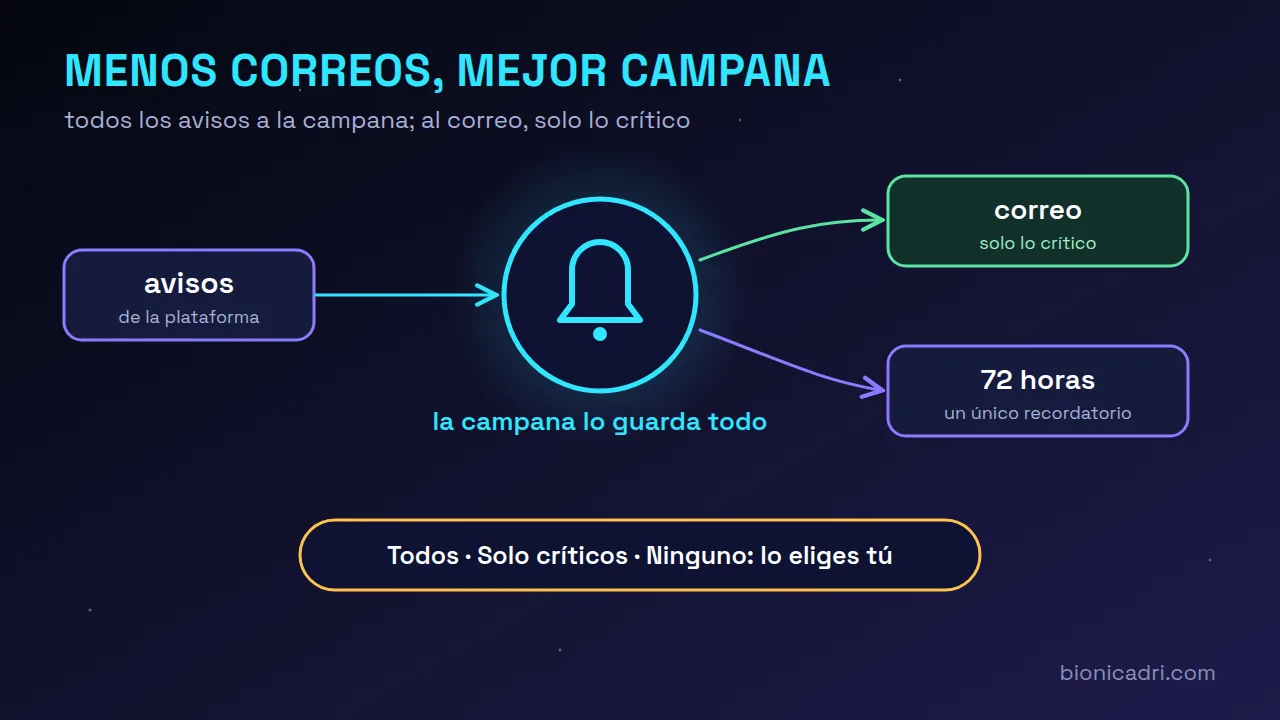
We've changed the way BionicAdri notifies you so that doesn't happen. The idea is simple: the bell keeps everything and email only carries what can't wait.
Why do notification emails overwhelm a team?
Because they mix two different things. Some notifications ask you to do something, such as sign, approve, reply or check a failure. And some notifications only tell you about something that has already happened. If both arrive in the same place and look the same, the brain learns to ignore them all.
The solution isn't to remove notifications. It's to send each one through the channel it belongs to: urgent things by email, which is what you check even when you don't have the app open, and informational ones to a place where you can look them up whenever you like.
The three ‘Email notifications’ options
Each person chooses in their profile, on the Email notifications tab, what also reaches them by email. The bell still receives almost all notifications; this option only decides the email.
- All. Every notification on the platform also arrives by email.
- Critical only. This is the recommended option and the default one. You only get emails about things that require you to do something or that are an alert. Everything else stays in the bell.
- None. You only receive the emails you need to get into your account.
Everyone changes their own. Nobody decides for you how many emails you receive.
What counts as a critical notification?
With ‘Critical only’ you get these by email, among others:
- Access and security: resetting your password, verifying your email, the sign-up invitation, signing codes or a suspicious login. These always arrive, whichever option you choose.
- Signatures and payslips: documents or payslips waiting for your signature, their reminders and their cancellations.
- Holidays and leave: when they are approved, rejected, cancelled or withdrawn.
- Shifts: when a shift is assigned to you or changed.
- Meetings and appointments: invitations and appointments booked or cancelled.
- Payments and sales: a failed automatic payment, an overdue invoice that gets escalated or a signed quote.
- Legal and tax deadlines: whistleblowing channel reports, data rights requests and tax deadlines.
- System alerts: failures, disk full or urgent support.
The daily summary, new leads, clock-ins, tasks or maintenance live in the bell.
The bell: seen is not the same as read
The app's bell works like the one on any mobile phone, with one important detail: opening it does not mark anything as read.
- The red number counts new notifications you have not seen yet.
- When you click a notification, it is marked as read and takes you to its screen.
- Mark all as read clears the list in one go.
- View all opens your full inbox, with filters for All, Unread and Critical, and by notification type.
This way you can take a quick look without losing track of what you still have pending.
The 72-hour reminder
What if a notification in the bell stays unread for days? That is what the reminder is for. If you are on “Critical only” and a notification that lives only in the bell has been unread for more than 72 hours, you receive a single email, on the morning of a working day, with the list of those notifications.
It has three limits designed so that it does not become another heavy email: it only counts items from the last 14 days, each notification is reminded only once and, if you choose “All” or “None”, it is not sent.
Fewer repeated notifications and subject lines that make sense
In addition to choosing the channel, we have cut noise at the source:
- Shift changes are grouped: if HR adjusts several shifts in a row, you receive a single notification per batch, not one for each change.
- Holiday and clock-in change notifications include the dates or the specific clock-in in the subject, so you know what it is about without opening it.
- Each notification is sent in the language of the person receiving it.
Emails that do not go to a platform account, such as those sent to a customer's address, do not go through this filter: those are communications with third parties, not internal notifications.
What your company gains
A mailbox with fewer notifications is a mailbox people go back to reading. When only what requires action arrives by email, an email from BionicAdri once again means “you have something to do”. And informative items are still there, organised in the bell, for anyone who wants to check them.
If you want to know how messages to customers and contacts go out, we explain it in when ADRI asks for your permission and when it doesn't. More about the team's day to day in holidays, leave and shifts and in the email, WhatsApp and Telegram inbox, or request a demo.
Frequently asked questions
Can the administrator change my email notifications?
No. Each person chooses their option from their profile, in the Email notifications tab. By default it is “Critical only”.
Will I no longer receive the password recovery email?
No. Access and security notifications, such as password recovery or signing codes, always arrive by email, whichever option you choose.
Does opening the bell mark notifications as read?
No. Opening it only marks them as seen and reduces the red count. A notification is marked as read when you click it, or all at once with “Mark all as read”.
- Notifications
- Productivity
- Team